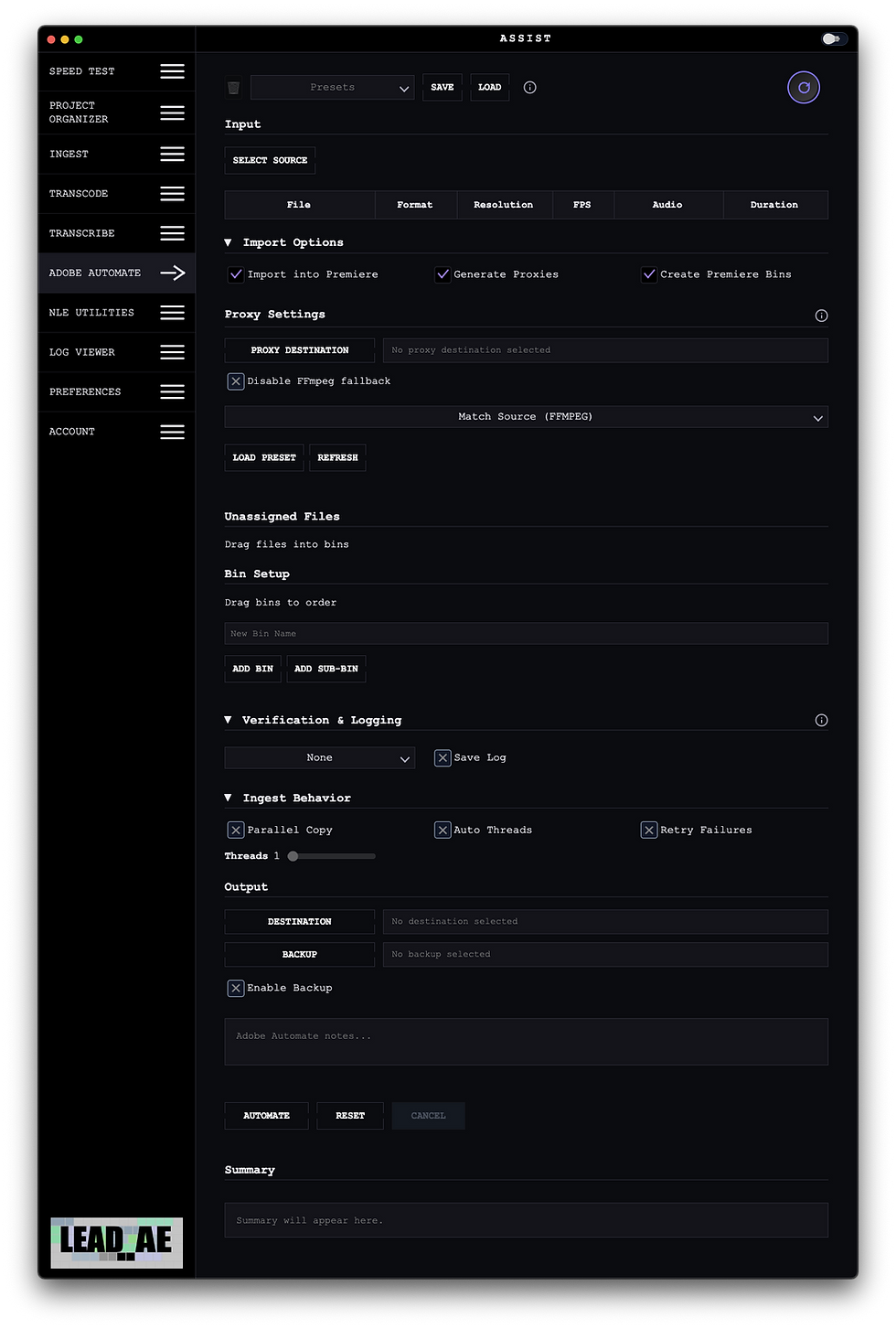
ADOBE AUTOMATE
Adobe Automate is the “glue” panel that orchestrates Assist’s local ingest/copy/verify + proxy generation and then drives Premiere Pro via CEP/ExtendScript to import media, create bin structures, and attach proxies back to master clips.
This is not a “Premiere plugin that does everything.” It’s a controlled orchestration layer that keeps the risky parts (filesystem + encoders) in the desktop app, and uses CEP only for the actions Premiere is uniquely good at (import, bins, proxy attach).
What it’s for (real workflows)
-
One-button “card to editorial”:
-
copy media off source(s) to destination,
-
verify integrity,
-
optionally dual-copy to backup,
-
import into Premiere,
-
build bins,
-
generate proxies,
-
attach proxies back to masters.
-
-
Facility-safe ingest where you need hash verification (BLAKE3/SHA-256/etc) or byte-compare before import.
-
Automated proxy runs using Adobe Media Encoder (.epr presets) when available, with controlled fallback behavior.
-
Batch jobs where you need structured logs and optional webhook posts (n8n) for automation/monitoring.
Requirements and environment
-
Premiere Pro must be open with a project loaded.
-
The Lead AE Assist CEP panel must be installed, open, and connected.
-
A local Assist “bridge” service runs on 127.0.0.1 (default port family is 32123), and CEP talks to it over:
-
HTTP heartbeat/handshake, then
-
a WebSocket with a runtime token (Bearer token).
-
If CEP isn’t connected, Adobe Automate can still do copy/verify/backup work, but Premiere-side actions (import/bins/proxy attach) are blocked until the connection exists.
1) Local-first ingest + verification
Adobe Automate uses the desktop app’s filesystem pipeline:
-
Copies to a .partial temp file first, then promotes into place (reduces partial/corrupt output files).
-
Best-effort fsync before rename (reduces “it exists but didn’t flush” failures).
-
Optional verification per file:
-
None
-
Byte Compare
-
BLAKE3
-
SHA-256
-
MD5
-
xxHash64
-
Verification has teeth: on mismatch, the bad copy is removed and the file is excluded from Premiere import/proxy attach.
2) Dual copy / backup (separate stage)
Backup is treated as a distinct stage:
-
Copies to backup path and verifies separately.
-
Backup failures do not automatically block Premiere import (this is deliberate; you can choose your policy operationally).
3) Source scanning and guardrails
When you select sources, the panel can expand directories into a bounded file list:
-
max depth (default-ish behavior: capped),
-
max files (prevents memory blow-ups),
-
timeout protection (doesn’t hang forever on slow mounts).
It also shows a file info grid using ffprobe when available, but degrades gracefully if ffprobe fails (no UI crashes).
4) Import-time controls (per-file gating)
Before anything touches Premiere, the panel can apply conservative rules:
-
“Only supported import types” filtering (extension-based heuristics).
-
Exclude patterns (wildcards/substring rules).
-
Per-file toggles:
-
Import on/off
-
Proxy encode on/off (only meaningful when proxy generation is enabled)
-
This is designed to stop classic junk from entering the project (project files, session files, weird artifacts) without requiring you to babysit every job.
5) Bin creation and mapping
Bin structure is defined in the panel and sent to CEP:
-
Root bins are reorderable.
-
Subfolders are nested and follow parent.
-
Files can be drag-assigned to bins (the mapping is preserved across presets).
6) Proxy generation modes
There are two proxy paths:
A) AME preset mode (.epr)
-
Uses a selected Adobe Media Encoder preset file.
-
Proxies are written to the chosen proxy destination (or auto to Destination/Proxies).
-
A set of “proxy attach rules” are enforced conceptually (container/resolution/fps/audio layout parity) so you don’t end up attaching the wrong files.
B) Match Source (FFmpeg)
-
A deliberate “no preset” mode that generates proxies dynamically using FFmpeg.
-
This bypasses AME entirely and is meant for reliability when preset attachment rules or AME behavior are a bottleneck.
7) FFmpeg fallback behavior (controlled, not chaotic)
The intent is not “always FFmpeg.” The panel supports a fallback path when AME isn’t viable.
Operationally (and matching your stated preference), FFmpeg fallback is used only when:
-
AME is not installed / not detectable, or
-
AME produces no proxies / no usable proxy files, or
-
AME never connects / stalls (watchdog detects no activity for a sustained period).
There is also an explicit UI switch to disable FFmpeg fallback. If you disable it and AME can’t run, the job fails fast instead of hanging in “waiting for proxies.”
Safety and security model
Local-only bridge + runtime token
-
Bridge endpoints are localhost only.
-
CEP authenticates using a runtime token that can be rotated; the panel warns if you’re using an environment-provided token (often a sign of a weak/shared secret).
-
Heartbeat/handshake are required before the WebSocket comes up.
Path approvals (fail-closed)
-
Paths restored from presets are not automatically trusted.
-
The app can require explicit approval of source/destination/preset paths before running (prevents “load preset → access random disk paths” surprises).
Webhook validation
If you enable n8n webhooks:
-
URL must be http/https and parse cleanly.
-
Private/localhost targets are blocked unless explicitly allowed (reduces accidental log exfiltration into internal networks).
Renderer safety
-
UI builds file rows using safe DOM methods (no innerHTML injection from filenames/paths).
-
CEP window navigation is guarded so external URLs don’t open inside a privileged renderer.
Logs and observability
-
Live panel log feed + structured job logs written by the backend.
-
Optional job log saved to destination (or backup) when enabled.
-
“Sticky log summary” behavior after completion so you can copy/paste the run details, then it clears on the next meaningful UI change.